

Publishing overview
Agent Graph publishing in Phinite provides enterprise-grade deployment capabilities with full version control, access management, and observability. Understanding the publishing process is crucial for maintaining stable, secure, and auditable workflows.Publishing workflow
Access control and permissions
Role-based publishing permissions
Environment-specific access
- Development: All users with “Developer” role or higher
- UAT: Requires “Admin” role for publishing
- Production: Requires “Admin” or “SuperAdmin” role with additional approval workflows
Pre-publishing checklist
Agent Graph validation requirements
- Agent Graph is saved successfully
- All required node fields are filled
- Agent prompts are complete and tested
- RAG sources are properly connected
- Tool integrations are configured
- Variables are properly mapped
- Conditional edges have valid logic
- Agent Graph has clear Start and End nodes
- No orphaned nodes or disconnected components
Common validation failures
Missing required fields
Missing required fields
Error: “Please fill all required details for the following nodes: agent, tool”Debugging steps:
- Check each node in the Inspector panel
- Verify all required fields are populated
- Look for red validation indicators
Invalid connections
Invalid connections
Error: “Agent Graph contains invalid connections or orphaned nodes”Debugging steps:
- Check for nodes without proper connections
- Verify Start node has outgoing connections (Max one)
- Ensure End nodes have incoming connections
- Look for disconnected nodes in the canvas (Except the child nodes)
Tool integration errors
Tool integration errors
Error: “Tool integration failed validation”Debugging steps:
- Verify API keys and credentials
- Review tool parameter mapping
Publishing process
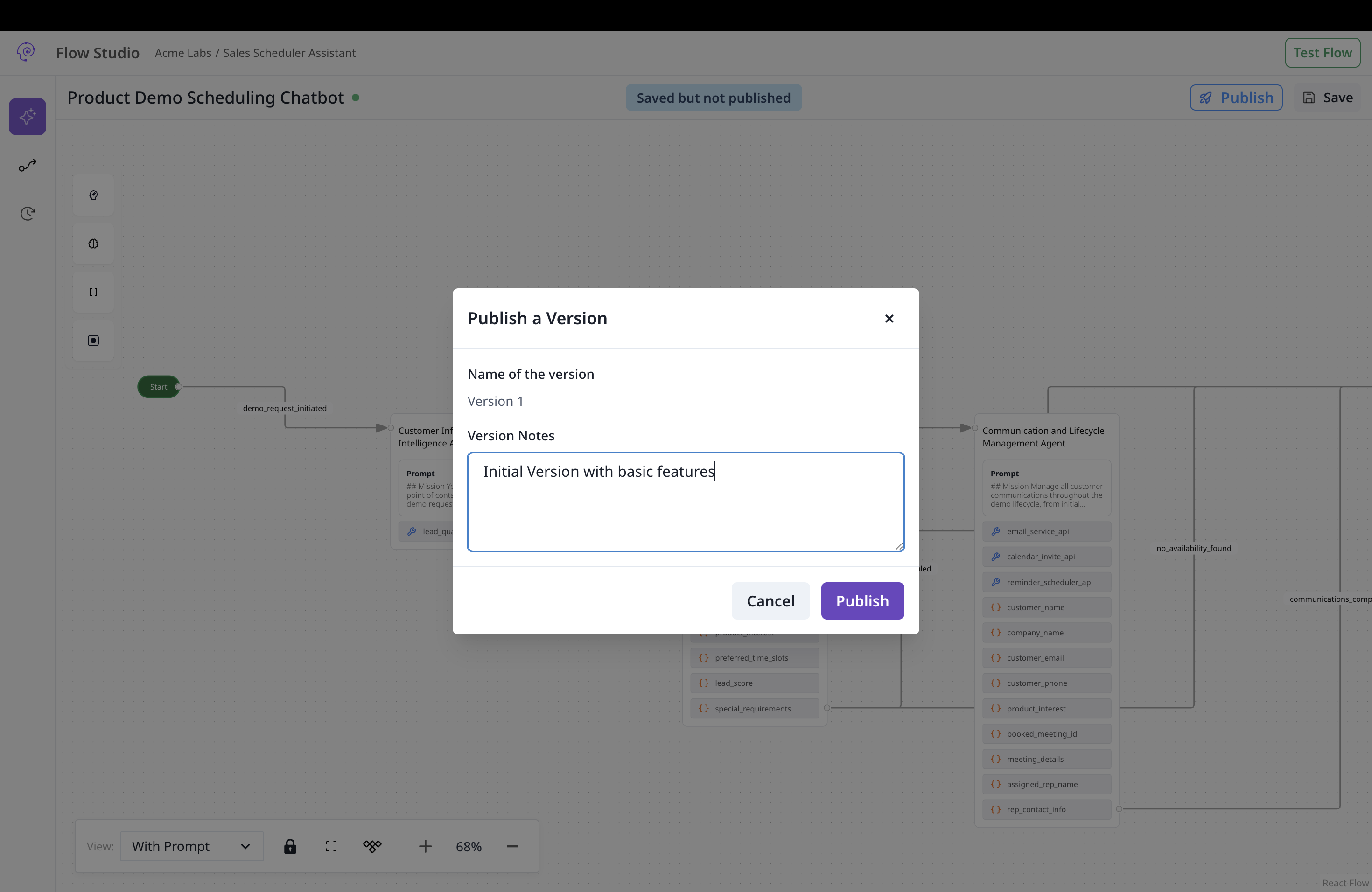
Step-by-step publishing
1
Save your flow
Click “Save” in the studio header to persist your changes.
You should see a success message confirming the flow is saved.
2
Run validation
The system automatically validates your flow before publishing.
3
Add version details
Provide a clear description of changes in this version.Good version notes:Poor version notes:
4
Select target environment
Choose the appropriate environment for deployment.
Production deployments may require additional approval workflows depending on your organization’s policies.
5
Confirm and publish
Review all settings and confirm the publication.
You should see a success message and the new version in the version history.
Version management
Version history interface
The version history panel provides comprehensive version management:- Version list: View all published versions with timestamps and notes
- Version details: Inspect specific version configurations
- Copy to draft: Create a new draft based on any published version
- Environment status: See which environments each version is deployed to
Version numbering
Phinite automatically manages version numbers:- First published version: Starts at version 1
- Subsequent versions: Incrementally numbered (2, 3, 4, etc.)
- Draft versions: Not numbered until published (default 0)
- Version notes: Required for all published versions
Copying versions to draft
1
Access version history
Click “Version History” in the studio sidebar.
2
Select source version
Choose the version you want to copy from the list.
3
Copy to draft
Click “Copy to Draft” and confirm the action.
4
Edit and republish
Make your changes and publish as a new version.
Post-publishing monitoring
Build verification
1
Check Build with particular agent graph version
Verify the agent graph is connected to target build and build is connected to the desired environment.
2
Test flow execution
Run test scenarios to ensure the flow works as expected.
3
Monitor performance
Use Observability tools to track flow performance.
4
Review logs
Check execution logs for any issues or errors.
Performance monitoring
- Execution success rate: Track how often flows complete successfully
- Response times: Monitor flow execution duration
- Error rates: Identify common failure points. Work on prompt or changing models.
- Resource usage: Track token consumption and API calls
Best practices
Version management
- Descriptive notes: Always provide clear, actionable version descriptions
- Incremental changes: Make small, focused changes rather than large overhauls
- Testing: Thoroughly test flows before publishing to production
- Rollback plan: Keep previous versions available for quick rollback
Security considerations
- Access control: Regularly review who has publishing permissions
- Environment isolation: Maintain strict separation between environments
- Audit trails: Monitor all publishing activities for compliance
- Secret management: Ensure sensitive data is properly secured
Performance optimization
- Efficient flows: Design flows for optimal performance and resource usage
- Monitoring: Set up alerts for performance degradation
- Scaling: Plan for increased load and usage patterns
- Optimization: Continuously optimize based on performance data
Expose as an A2A agent (Agent Registry)
After you publish an agent graph, you can register it in the Agent Registry so other systems and agents can call it over the A2A protocol.1
Publish the agent graph
Complete validation and publish at least one version to your target environment. Unpublished graphs cannot be exposed.
2
Open Configure Agent
In Graph Studio (local/dev environments), click Configure Agent in the canvas header, then Create New Build in the Expose modal.
3
Complete the Expose wizard
Fill in Agent Build Config, optional export settings, and the Agent Card (skills, tags, visibility). Submit with Attach Agent Card.
4
Promote when ready
New builds start as test. Promote to live from Agent Cards when production routing is approved.
Integration with other components
Assistant integration
- Conversational Assistants: Deploy flows for chat and voice interactions
- Email Assistants: Publish flows for email automation
- Autonomous Assistants: Deploy background automation flows
Observability integration
- Execution Logs: Monitor published flow performance
- Usage Metrics: Track flow usage and performance
- Error Tracking: Identify and resolve issues
Environment management
- Build Configuration: Configure deployment settings
- Lifecycle: Recommended testing and deployment flow