

Available integrations
Overview
This page explains how to add and configure the pre-packaged tools (“Predefined Tools”) for your agentic system, and describes each tool and its available subtools. Read this start-to-finish to configure tools reliably, or jump to the per-tool section for details.Quick start: How to add a tool
- Open the agent you want to configure in the editor.
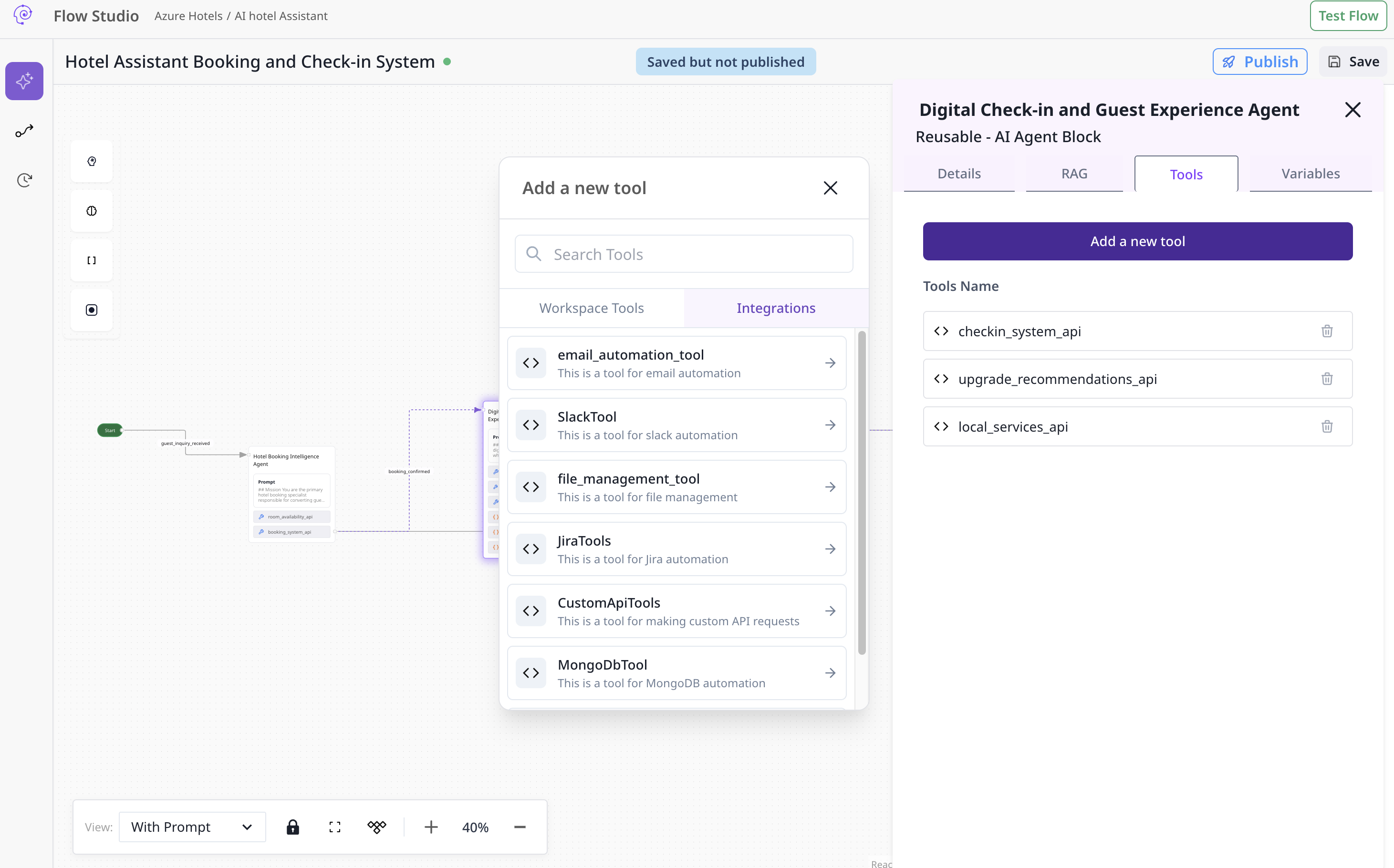
- Click the Tools tab inside the agent block.
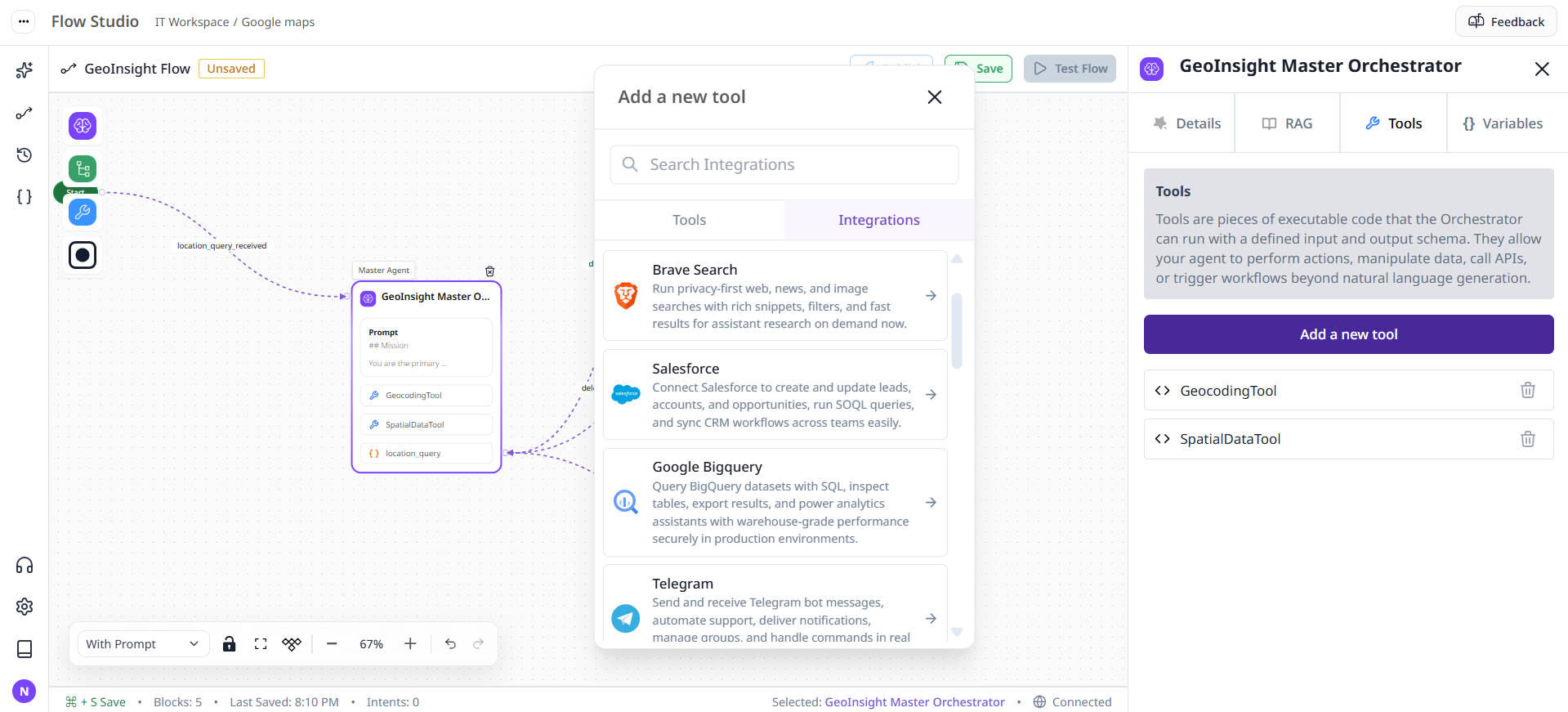
- Click Add a new tool.
- From the list of available tools pick the tool you want to add (for example:
GmailTool,SlackTool). - After selecting a tool you will see a dropdown to choose an existing connection or + Add a new connection.
- If you choose Add a new connection, fill the required configuration fields (see the tool’s configuration below). Save the connection.
- Once the connection is created/selected, add or enable the subtools you need. Subtools are individual capabilities (for example:
get_latest_emails,send_message). - Test the connection using a simple subtool call (for example, list channels or get a small set of emails). If the test works, save the agent.
Tip: Add only the minimal set of permissions/credentials necessary for the agent’s task. For example, a tool used only to read emails should not be granted send/delete permissions.
Generic concepts (applies to most tools)
- Connection: A saved set of configuration values (credentials, tokens, base URLs). Connections are reusable across agents.
- Required field: You must supply this to create or validate the connection.
- Optional field: Useful for finer control; can be omitted or left blank.
- Timeout: Number of seconds the client will wait for a response. Use lower timeouts for interactive agents, higher for batch jobs.
- Headers: Custom HTTP headers (key/value object) for tools that call external APIs.
- Scopes / Permissions: OAuth-style or token scopes control what the tool can do. Only request the scopes you need.
Tools: Overview & Detailed Reference
Below each tool is listed with: ID, purpose, configuration fields, required permissions/notes, and full list of subtools with short descriptions and suggested parameters. Use these as a single-source reference when creating connections and choosing subtools to enable.1) GmailTool
- ID:
tool_001 - Name: GmailTool
- Description: This tool enables email automation for Gmail-like accounts (reading, searching, drafting, sending, and replying to email threads).
Required configuration
email(string) — required: The email address used by this connection (owner). Example:alice@example.com.app_password(string) — required: App password or SMTP/IMAP specific password. Must be stored securely.
Notes: If integrating via OAuth in the future, you would replace app_password with OAuth tokens and scopes. For IMAP/Gmail API usage ensure the account has API access enabled and app passwords configured if using basic auth.
Typical connection validations
- Attempt to list the inbox labels/folders.
- Attempt to fetch a single message metadata (no bodies) first to validate read scope.
Subtools (what they do + suggested parameters)
Each subtool’s parameters below are recommended input fields your UI should expose when the user enables that subtool. The agent runtime may accept additional advanced options.get_latest_emails— Get the latest X emails from the user’s inbox.- Suggested parameters:
count(integer, default: 10),label(string, optional),include_body(boolean, default: false),include_attachments(boolean, default: false).
- Suggested parameters:
get_emails_from_user— Get X emails from a specific user (name or email).- Suggested parameters:
from(string, email or display name),count(integer),label(string, optional).
- Suggested parameters:
get_unread_emails— Get the X latest unread emails.- Suggested parameters:
count(integer),label(string, default:INBOX).
- Suggested parameters:
get_starred_emails— Get X starred emails.- Suggested parameters:
count(integer),label(string, optional).
- Suggested parameters:
get_emails_by_context— Search emails by natural language context or keyword.- Suggested parameters:
query(string),count(integer),include_snippet(boolean).
- Suggested parameters:
get_emails_by_date— Retrieve emails within a date range.- Suggested parameters:
start_date(integer, unix timestamp),end_date(integer, unix timestamp),count(integer). Note: timestamps ensure timezone-consistent queries.
- Suggested parameters:
get_emails_by_thread— Retrieve all messages in a specific thread.- Suggested parameters:
thread_id(string) ormessage_id(string).
- Suggested parameters:
search_emails— Search across to/from/cc/subject/body with a natural text query.- Suggested parameters:
query(string),count(integer),include_labels(boolean).
- Suggested parameters:
create_draft_email— Create & save a draft.- Suggested parameters:
to(string, comma-separated),cc(string, optional),bcc(string, optional),subject(string),body(string),attachments(list, optional).
- Suggested parameters:
send_email— Send an email immediately.- Suggested parameters: same as
create_draft_emailplussend_as(string, optional),reply_to_message_id(string, optional).
- Suggested parameters: same as
send_email_reply— Reply to existing thread/message.- Suggested parameters:
message_id(string) orthread_id(string),body(string),include_quoted(boolean, default: true).
- Suggested parameters:
Error cases & troubleshooting
- Auth errors: Verify
app_passwordand theemailmatch, verify IMAP/SMTP or Gmail API access. - Quota / rate limit: If many clients use the same connection, rotate or create per-agent connections.
- Large attachments: For sending large files, consider upload to a storage service and share link instead.
2) SlackTool
- ID:
tool_002 - Name: SlackTool
- Description: Tool to automate Slack workspace interactions including sending messages, threads, listing channels and getting channel history.
Required configuration
bot_token(string) — required: The bot token (starts withxoxb-typically). This token defines the bot’s permissions.app_token(string) — optional: For Socket Mode or other advanced real-time features (starts withxapp-).
Notes: Ensure the token has scopes required by subtools (e.g.,chat:write,channels:read,channels:history,conversations:read).
Subtools
send_for_approval— Send a confirmation message with captured variables and wait for approval/rejection.- Suggested parameters:
channel_id(string),message(string),variables(object),timeout_seconds(integer). - Behavior note: This subtool should implement a callback or webhook to capture approval events.
- Suggested parameters:
send_message_to_general— Send a message specifically to the general channel or any named channel.- Suggested parameters:
text(string),channel_name(string, default:general),attachments(list, optional).
- Suggested parameters:
send_message— Send a message to any channel.- Suggested parameters:
channel_id(string),text(string),thread_ts(string, optional for thread replies).
- Suggested parameters:
send_message_thread— Post a message to a channel thread.- Suggested parameters:
channel_id(string),parent_ts(string),text(string).
- Suggested parameters:
list_channels— List channels in the workspace.- Suggested parameters:
limit(integer),types(string:public_channel,private_channel),exclude_archived(boolean).
- Suggested parameters:
get_channel_history— Get message history of a channel.- Suggested parameters:
channel_id(string),count(integer),latest(timestamp),oldest(timestamp).
- Suggested parameters:
Permissions & notes
- For private channels, the bot must be invited into the channel to list or read messages.
- For interactive approval flows you may need to configure Slack app event subscriptions and interactive components.
3) TeamsTool
- ID:
tool_003 - Name: TeamsTool
- Description: Automate operations on Microsoft Teams — posting messages, performing approval flows, and interacting with channels/teams.
Required configuration
app_id(string) — required: Azure AD application (client) ID.app_secret(string) — required: Azure AD application client secret.tenant_id(string) — required: Azure AD tenant ID.
Notes: This tool uses Azure AD credentials to acquire tokens for Microsoft Graph. Ensure the app has delegated or application permissions for Microsoft Graph endpoints used by subtools (e.g.,ChatMessage.Send,ChannelMessage.Read.All).
Subtools
send_for_approval— Send a Teams message with variables that require approval and wait for the user’s response.- Suggested parameters:
team_id(string),channel_id(string),message(string),approval_options(list),timeout_seconds(integer). - Behavior note: Implement adaptive cards or message actions to collect approval and listen to Graph change notifications.
- Suggested parameters:
Notes & troubleshooting
- Graph permissions differ between delegated and application flow; tests should reflect intended runtime (background bot vs. user-delegated).
4) JiraTools
- ID:
tool_004 - Name: JiraTools
- Description: Jira automation for creating, updating, searching, and transitioning issues.
Required configuration
server_url(string) — required: Base URL of the Jira instance (e.g.,https://yourdomain.atlassian.net).username(string) — required: Username or email for authentication.token(string) — required: API token or password (prefer token for cloud).
Subtools
get_issue— Retrieve details for a single issue by key.- Suggested parameters:
issue_key(string),fields(list, optional).
- Suggested parameters:
create_issue— Create a new issue in a project.- Suggested parameters:
project_key(string),issue_type(string),summary(string),description(string),assignee(string, optional),labels(list, optional),custom_fields(object, optional).
- Suggested parameters:
search_issues— Search using JQL.- Suggested parameters:
jql(string),start_at(integer),max_results(integer).
- Suggested parameters:
add_comment— Add a comment to an issue.- Suggested parameters:
issue_key(string),comment(string),visibility(object, optional).
- Suggested parameters:
update_issue— Update fields on an existing issue.- Suggested parameters:
issue_key(string),fields(object).
- Suggested parameters:
transition_issue— Move an issue to another workflow state.- Suggested parameters:
issue_key(string),transition_id(string) ortransition_name(string),comment(string, optional).
- Suggested parameters:
get_projects— List all projects accessible by the connection.- Suggested parameters:
expand(string, optional).
- Suggested parameters:
Notes
- JQL queries and permissions determine what results the API returns. If a user cannot see an issue in the UI they won’t be able to fetch it via the tool.
5) CustomApiTools
- ID:
tool_005 - Name: CustomApiTools
- Description: Generic HTTP client to make arbitrary API requests to external services. Useful for integrating systems with non-standard or private APIs.
Required configuration
base_url(string) — required: The base URL for API requests (e.g.,https://api.example.com/v1).
Optional configuration fields
username(string) — optional: For basic auth.password(string) — optional: For basic auth.api_key(string) — optional: Header API key or query param.headers(object) — optional: Key/value object for default HTTP headers.timeout(integer) — optional: Request timeout in seconds.
Subtools
make_request— Make an HTTP request to any endpoint.- Suggested parameters:
method(string:GET,POST,PUT,PATCH,DELETE),path(string, appended to base_url),query(object),body(object/string),headers(object, optional),auth(object, optional),timeout(integer, optional).
- Suggested parameters:
Best practices
- If the API requires signed requests or HMAC, set up the signing logic on the server or in a secure middleware rather than storing raw signing secrets in the agent.
- Validate and sanitize paths that come from user input to prevent SSRF or request-smuggling issues.
6) MongoDbTool
- ID:
tool_008 - Name: MongoDbTool
- Description: Tools to interact with MongoDB databases — CRUD, aggregation, index and database management.
Required configuration
connection_string(string) — required: Full MongoDB URI (for example:mongodb+srv://user:password@cluster0.example.mongodb.netormongodb://...).database_name(string) — required: Default database name used by the connection.
Security note: Use least privilege database users. Avoid using admin users for app-level operations.
Subtools and behaviors (high-level)
insert_document— Insert a single document.- Suggested params:
collection(string),document(object).
- Suggested params:
insert_many_documents— Bulk insert documents.- Suggested params:
collection(string),documents(list of objects).
- Suggested params:
find_document— Find a single document.- Suggested params:
collection(string),query(object),projection(object, optional).
- Suggested params:
find_many_documents— Find multiple documents with optional pagination.- Suggested params:
collection(string),query(object),limit(integer),skip(integer).
- Suggested params:
update_document/update_many_documents— Update one or many documents.- Suggested params:
collection,query,update(object),upsert(boolean, optional).
- Suggested params:
delete_document/delete_many_documents— Remove documents.- Suggested params:
collection,query.
- Suggested params:
count_documents— Count documents matching a query.- Suggested params:
collection,query.
- Suggested params:
aggregate_documents— Run aggregation pipeline.- Suggested params:
collection,pipeline(array).
- Suggested params:
create_collection,drop_collection,list_collections— Manage collections.create_index,list_indexes,drop_index— Index management.get_database_stats,get_collection_stats— Return server-provided stats (size, counts, index info).create_database,drop_database,list_databases— Database-level operations.
Operational notes
- Aggregations may be resource intensive: add
maxTimeMSor server-side limits when exposing this to agents. - Transactions require replica set / replica enabled clusters. Document whether transaction support is available with your connection string.
- For sensitive operations (drop collection/database), require explicit confirmations and role-based approvals.
Examples
1. Add GmailTool- Tools tab → Add a new tool → select
GmailTool→+ Add a new connection→ enteremail=alice@example.com,app_password=····→ Test (Get latest 1 email). - Enable
get_unread_emailsand setcount=10.
- Tools tab → Add a new tool → select
MongoDbTool→+ Add a new connection→connection_string=mongodb+srv://readonly:pw@cluster.mongodb.net,database_name=myapp_db→ Test (list_collections). - Enable
find_many_documentsandinsert_documentwith appropriate parameter templates.
Appendix — Full tools list (summary)
tool_001: GmailTool — email automation (reads, drafts, sends).tool_002: SlackTool — Slack messaging & channel history.tool_003: TeamsTool — Microsoft Teams automation (requires Azure AD app).tool_004: JiraTools — Jira issue & project automation.tool_005: CustomApiTools — Generic HTTP client for arbitrary APIs.tool_006: MongoDbTool — MongoDB operations and management.