

Overview
The Edit Intent screen allows you to expose an intent as an API trigger. When enabled, this intent can be invoked externally via an HTTP API call. Triggering this API will start the configured flow in the selected integration channel (for example, Microsoft Teams, Slack, etc.). This is useful when you want external systems (monitoring tools, backend services, etc.) to programmatically initiate a conversation or workflow inside a supported integration.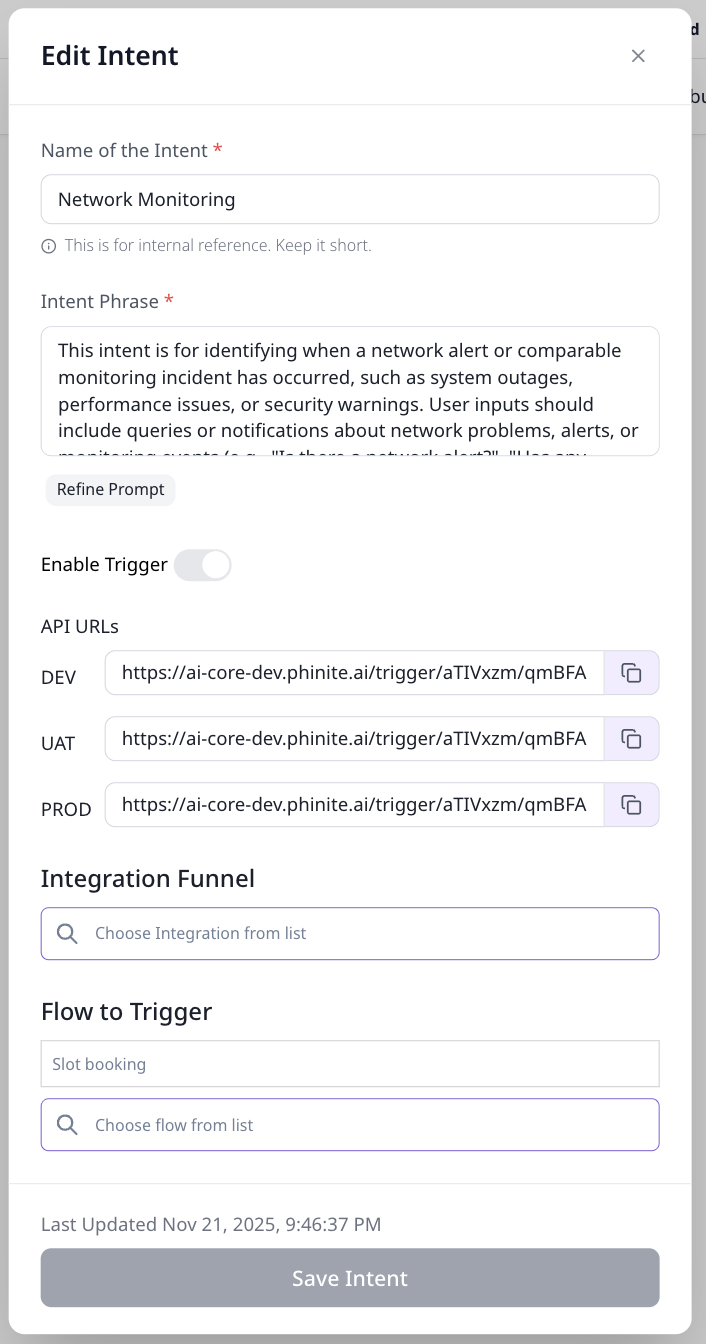
Enabling an Intent as an API
To enable an intent as an API:- Open the Edit Intent modal.
- Toggle Enable Trigger to ON.
- Select an Integration from the Integration Funnel.
- Choose a Agent Graph to Trigger for that integration.
- Save the intent.
- Update the build with new intent version.
- DEV
- UAT
- PROD
How It Works
When the generated API endpoint is called:- The request is authenticated using a Bearer Token (API key configured at the workspace level).
- The intent is matched and executed.
- The selected flow is triggered.
- The conversation starts in the chosen integration channel.
Example
If:- The Integration Funnel is set to Microsoft Teams
- The selected flow is linked to a Teams bot/channel
- Calling the API will initiate a conversation in the configured Teams channel or bot.
Authentication
All API requests must include a valid Bearer Token in theAuthorization header.
API Request Format
Endpoint
Use the environment-specific API URL generated in the Edit Intent screen:Request Payload
The API accepts the following JSON payload:Field Descriptions
Special Case: Twilio Integration
When using Twilio as the integration channel, an additional parameter is required to initiate outbound calls:Additional Field for Twilio
Session Initialization
- The
messagefield is treated as the first user message in the conversation. - The
user_variablesare injected at session start. - Any variables passed here will be accessible inside the flow logic, conditions, and tools.
Example Payload
API Usage Examples
All examples below demonstrate how to trigger an intent API using a API KEY and a JSON payload.Request Details
- Method:
POST - Authorization: Bearer Token (workspace-level)
- Content-Type:
application/json
Sample Payload
Replace:API_URLwith your DEV / UAT / PROD endpointYOUR_BEARER_TOKENwith your workspace token
Twilio-Specific Example
Response Examples
Success Response (200 OK)
Twilio Success Response (200 OK)
When triggering a Twilio outbound call, the response includes call-specific details:Error Responses
Common Use Cases
- Triggering incident workflows from monitoring systems
- Starting conversations from backend services
- Initiating alerts in Teams or other channels
- Passing structured context into a flow at runtime
- Twilio: Initiating outbound calls for notifications, reminders, or follow-ups
Notes & Best Practices
- Ensure the integration channel is properly configured and connected.
- Always validate the Bearer Token before deploying to PROD.
- Use
user_variablesfor structured data instead of embedding everything in the message. - Keep the intent name short and descriptive for internal reference.
- Test thoroughly in DEV environment before promoting to UAT/PROD.
- For Twilio: Always provide phone numbers in E.164 format (e.g.,
+1234567890) to ensure proper call routing.