> ## Documentation Index
> Fetch the complete documentation index at: https://docs.phinite.ai/llms.txt
> Use this file to discover all available pages before exploring further.
# Workspace Overview
> Understand how workspaces organize assistants, tools, integrations, and team collaboration in Phinite.
A workspace is the central collaboration environment within Phinite. It brings together your assistants, tools, integrations, and data sources into a single, organized space.\
When you log in, you land on the **Workspace Home** page, which can serve as your default dashboard or as the home page for a specific workspace
> 1. Workspaces are typically created by the **Organization Owner (Super Admin)** and managed by **Admins**.
> 2. Developers, Architects, and Testers can be added with controlled access through **Role-Based Access Control (RBAC)**.
Workspaces help teams isolate projects, manage access levels, and reuse assets across assistants within a common environment.
***
## Workspace Home
The workspace home provides a quick overview of your assistants, active copilots, and workspace-level activity.
It includes:
* A grid or list of existing assistants
* A co-pilot launcher to create or test a new assistant
* Optional metrics and usage analytics for your plan
Depending on your workspace configuration, the home page can be customized to display activity logs, performance charts, or project summaries.
***
### Multi-Workspace Access
From the global header, you can switch between multiple workspaces or create new ones if you have the required permissions.
Super Admins can create additional workspaces and assign Admins to manage them independently.
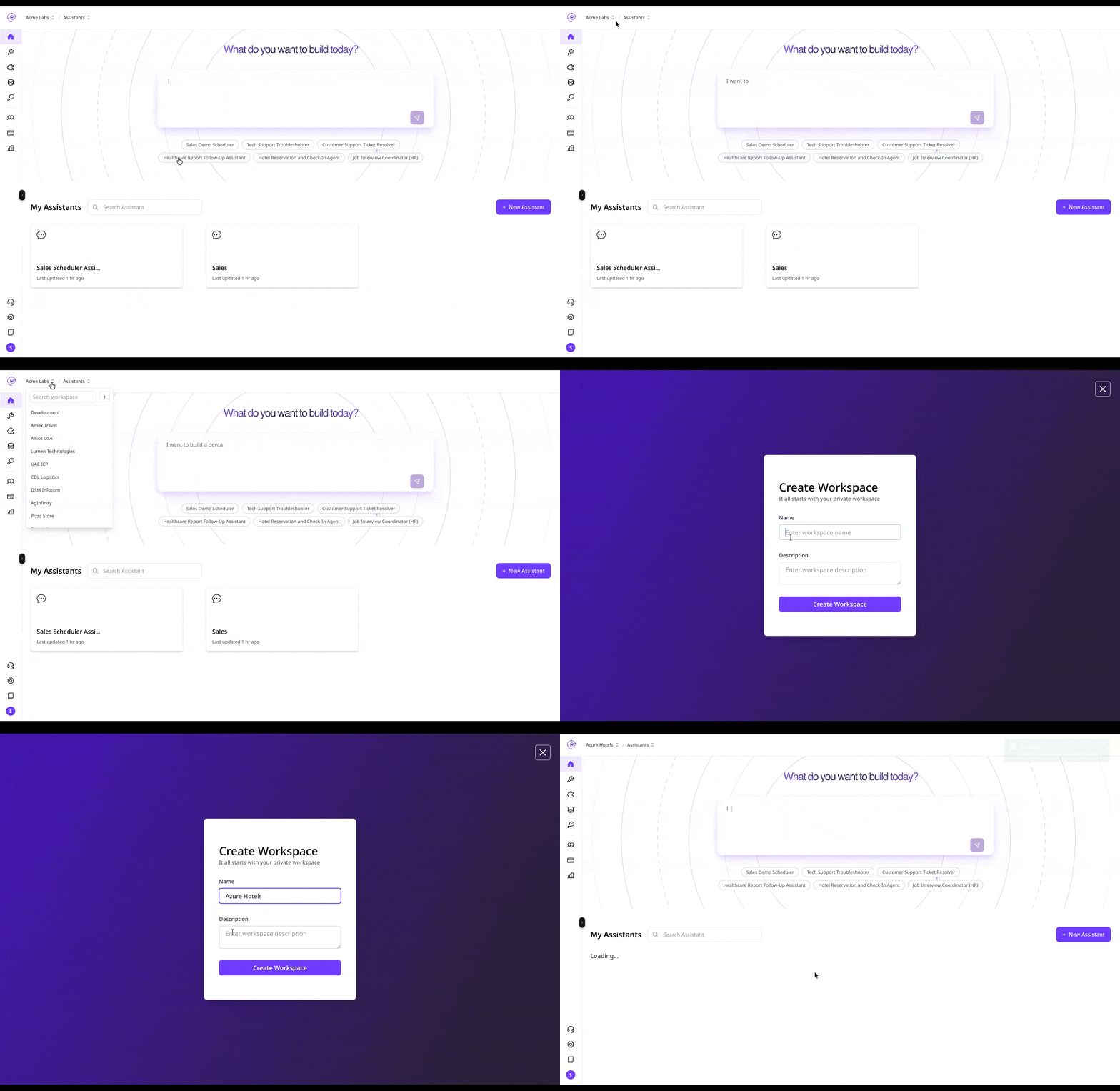 If you can view multiple workspaces in your dropdown, your organization supports multi-workspace collaboration.
***
## Sidebar Navigation
Each workspace includes a left sidebar that acts as your main navigation panel. The following sections are available:
### Assistants
Assistants are the core elements of a workspace. You can create and manage assistants of various types such as Conversational, Autonomous, or Email-based.
Each assistant can be opened in one of three environments:
* **Graph Studio** – for visual workflow design
* **DevStudio** – for logic, APIs, and custom tool development
* **Copilot** – for building or editing flows through natural language instructions
Assistants within a workspace share tools, integrations, and data sources.
Use naming conventions and folder structures to group related assistants together for easier management.
***
### Workspace Tools
Workspace Tools are reusable components that can be accessed by any assistant in the workspace.\
These can include:
* Code snippets
* API connectors
* Utility functions
* Reusable workflows
Tools reduce redundancy and promote modular development across assistants.
***
### Integrations
Integrations connect your workspace to external systems and communication channels.\
There are two primary types:
1. **Predefined Integrations** – Services such as Jira, Gmail, or Salesforce
2. **Channel Integrations** – Messaging and communication platforms such as WhatsApp, Microsoft Teams, or Slack
Once added, integrations can be authenticated and used directly within your assistant flows.
You can test integrations within the workspace before deploying to production environments.
***
### Agent Registry
**Agent Registry** is the workspace catalog of agents exposed over the **Agent-to-Agent (A2A) protocol**. From the sidebar, open **Agent Registry** when your organisation grants `workspace.sidebar.agent_registry`.
Use it to:
* **Expose** published agent graphs as hosted A2A endpoints
* **Browse** organisation and public Agent Cards
* **Compose** multi-agent flows with registry agent nodes in Graph Studio
See [Agent Registry overview](/agent-registry/overview) for the full workflow.
***
### Data Sources (RAG Collections)
Data Sources allow you to manage your workspace’s **knowledge base**.\
They are used to provide context and domain-specific information to your assistants.
Common formats include:
* PDF, CSV, or text documents
* Structured datasets or knowledge graphs
* API-connected data endpoints
You can organize data into folders or “collections” that can be referenced in assistant prompts or retrieval nodes.
***
### API Keys
API Keys enable secure programmatic access to your workspace’s flows and assistants.
You can:
* Generate workspace-level API keys
* Trigger **Agent Graph as a Service** from external applications
* Regenerate or revoke keys as needed
Treat API keys as confidential credentials. Revoking a key immediately disables all external requests using that key.
***
### Users
Only **Admins** and **Organization Owners** can manage workspace members.\
Users can be invited, assigned roles, or removed at any time.
Roles include:
* **Super Admin** – Full platform access
* **Admin** – Workspace management, billing, and user access
* **Developer** – Build and test assistants and tools
* **Tester (QA)** – Validate workflows and review logs
RBAC ensures users can only access the modules and environments relevant to their role.
***
### Billing
Billing is available to **Organization Owners** and includes:
* Current plan details
* Usage metrics (tokens, compute, voice minutes, API calls)
* Invoices and payment methods
Usage data from billing integrates with observability and reporting modules for detailed analytics.
***
### Reports
Reports provide visibility into workspace performance, including:
* Session activity across assistants
* Token and compute consumption
* Assistant-level execution summaries
You can filter reports by environment (Dev, UAT, or Production) to analyze trends and optimize resource usage.
***
## Bottom Navigation
At the bottom of the sidebar, you can access:
* **Workspace Settings** – Manage workspace name, environment configuration, and preferences
* **Documentation** – Direct link to Phinite documentation
* **User Profile** – Manage personal details, preferences, and sign-out
***
## Summary
A workspace in Phinite is your team’s shared environment where assistants, integrations, and data sources coexist.\
It provides governance, modularity, and collaboration, allowing each role to focus on their respective responsibilities while maintaining a unified automation ecosystem.
Use one workspace per functional team or business unit to maintain clarity, security, and scalable growth.
If you can view multiple workspaces in your dropdown, your organization supports multi-workspace collaboration.
***
## Sidebar Navigation
Each workspace includes a left sidebar that acts as your main navigation panel. The following sections are available:
### Assistants
Assistants are the core elements of a workspace. You can create and manage assistants of various types such as Conversational, Autonomous, or Email-based.
Each assistant can be opened in one of three environments:
* **Graph Studio** – for visual workflow design
* **DevStudio** – for logic, APIs, and custom tool development
* **Copilot** – for building or editing flows through natural language instructions
Assistants within a workspace share tools, integrations, and data sources.
Use naming conventions and folder structures to group related assistants together for easier management.
***
### Workspace Tools
Workspace Tools are reusable components that can be accessed by any assistant in the workspace.\
These can include:
* Code snippets
* API connectors
* Utility functions
* Reusable workflows
Tools reduce redundancy and promote modular development across assistants.
***
### Integrations
Integrations connect your workspace to external systems and communication channels.\
There are two primary types:
1. **Predefined Integrations** – Services such as Jira, Gmail, or Salesforce
2. **Channel Integrations** – Messaging and communication platforms such as WhatsApp, Microsoft Teams, or Slack
Once added, integrations can be authenticated and used directly within your assistant flows.
You can test integrations within the workspace before deploying to production environments.
***
### Agent Registry
**Agent Registry** is the workspace catalog of agents exposed over the **Agent-to-Agent (A2A) protocol**. From the sidebar, open **Agent Registry** when your organisation grants `workspace.sidebar.agent_registry`.
Use it to:
* **Expose** published agent graphs as hosted A2A endpoints
* **Browse** organisation and public Agent Cards
* **Compose** multi-agent flows with registry agent nodes in Graph Studio
See [Agent Registry overview](/agent-registry/overview) for the full workflow.
***
### Data Sources (RAG Collections)
Data Sources allow you to manage your workspace’s **knowledge base**.\
They are used to provide context and domain-specific information to your assistants.
Common formats include:
* PDF, CSV, or text documents
* Structured datasets or knowledge graphs
* API-connected data endpoints
You can organize data into folders or “collections” that can be referenced in assistant prompts or retrieval nodes.
***
### API Keys
API Keys enable secure programmatic access to your workspace’s flows and assistants.
You can:
* Generate workspace-level API keys
* Trigger **Agent Graph as a Service** from external applications
* Regenerate or revoke keys as needed
Treat API keys as confidential credentials. Revoking a key immediately disables all external requests using that key.
***
### Users
Only **Admins** and **Organization Owners** can manage workspace members.\
Users can be invited, assigned roles, or removed at any time.
Roles include:
* **Super Admin** – Full platform access
* **Admin** – Workspace management, billing, and user access
* **Developer** – Build and test assistants and tools
* **Tester (QA)** – Validate workflows and review logs
RBAC ensures users can only access the modules and environments relevant to their role.
***
### Billing
Billing is available to **Organization Owners** and includes:
* Current plan details
* Usage metrics (tokens, compute, voice minutes, API calls)
* Invoices and payment methods
Usage data from billing integrates with observability and reporting modules for detailed analytics.
***
### Reports
Reports provide visibility into workspace performance, including:
* Session activity across assistants
* Token and compute consumption
* Assistant-level execution summaries
You can filter reports by environment (Dev, UAT, or Production) to analyze trends and optimize resource usage.
***
## Bottom Navigation
At the bottom of the sidebar, you can access:
* **Workspace Settings** – Manage workspace name, environment configuration, and preferences
* **Documentation** – Direct link to Phinite documentation
* **User Profile** – Manage personal details, preferences, and sign-out
***
## Summary
A workspace in Phinite is your team’s shared environment where assistants, integrations, and data sources coexist.\
It provides governance, modularity, and collaboration, allowing each role to focus on their respective responsibilities while maintaining a unified automation ecosystem.
Use one workspace per functional team or business unit to maintain clarity, security, and scalable growth.