> ## Documentation Index
> Fetch the complete documentation index at: https://docs.phinite.ai/llms.txt
> Use this file to discover all available pages before exploring further.
# Custom Models
> Bring your own model (BYOM) endpoints for Graph Studio orchestration.
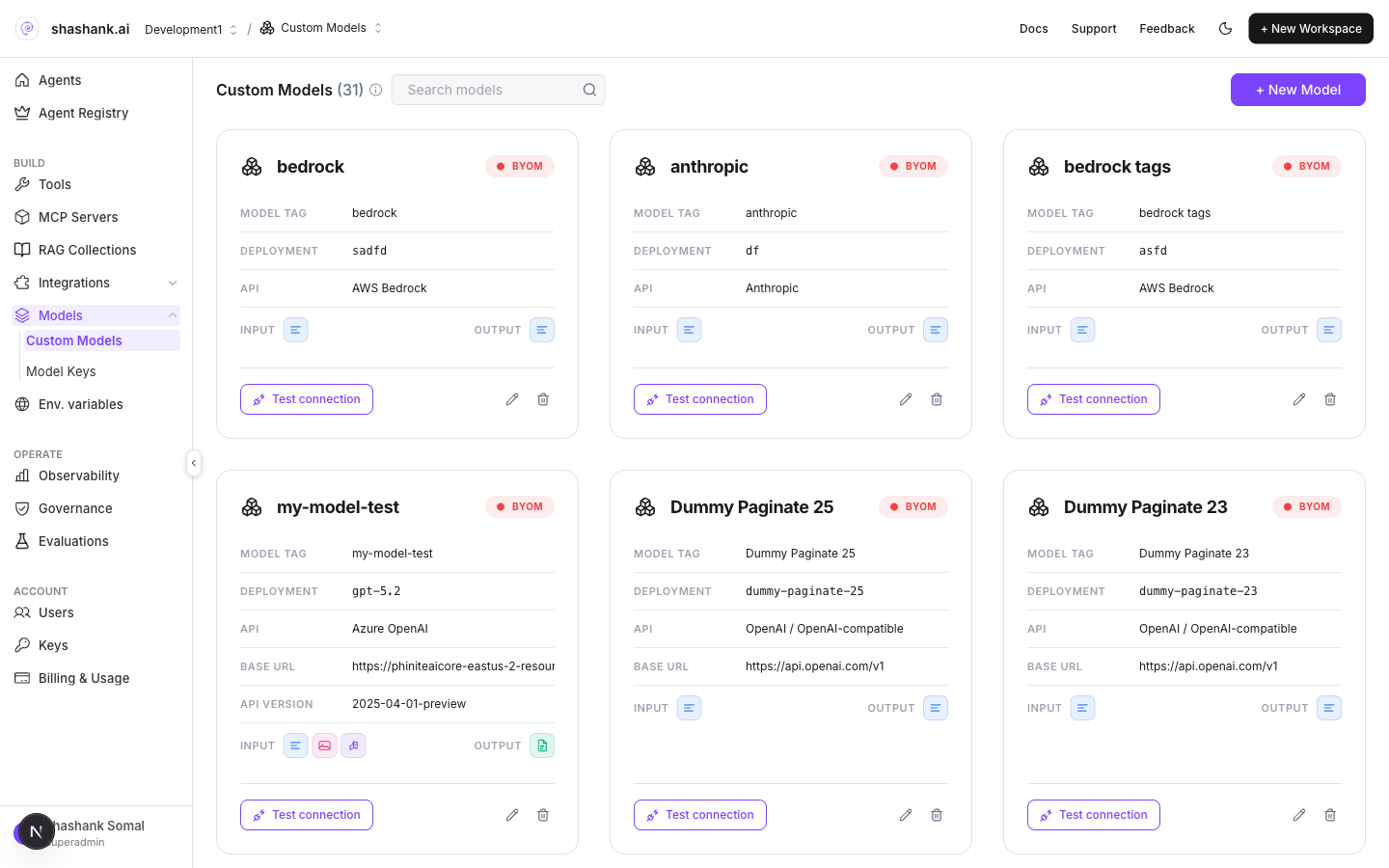
**Custom Models** (BYOM — bring your own model) are workspace-defined endpoints for models outside the Phinite catalog — OpenAI-compatible, Azure, Anthropic, Bedrock, or Vertex. Configure API compatibility, deployment name, credentials, and capabilities here. Saved models appear in Graph Studio when you turn on **Bring your Own(Custom)** and choose **Bring your own Model**.
 ## Where in the product
| Surface | Path |
| ----------------- | ---------------------------------------------------------------------------------------------------------- |
| Workspace sidebar | **BUILD → Models → Custom Models** |
| URL | `/{org}/workspace/{workspaceId}/custom-models` |
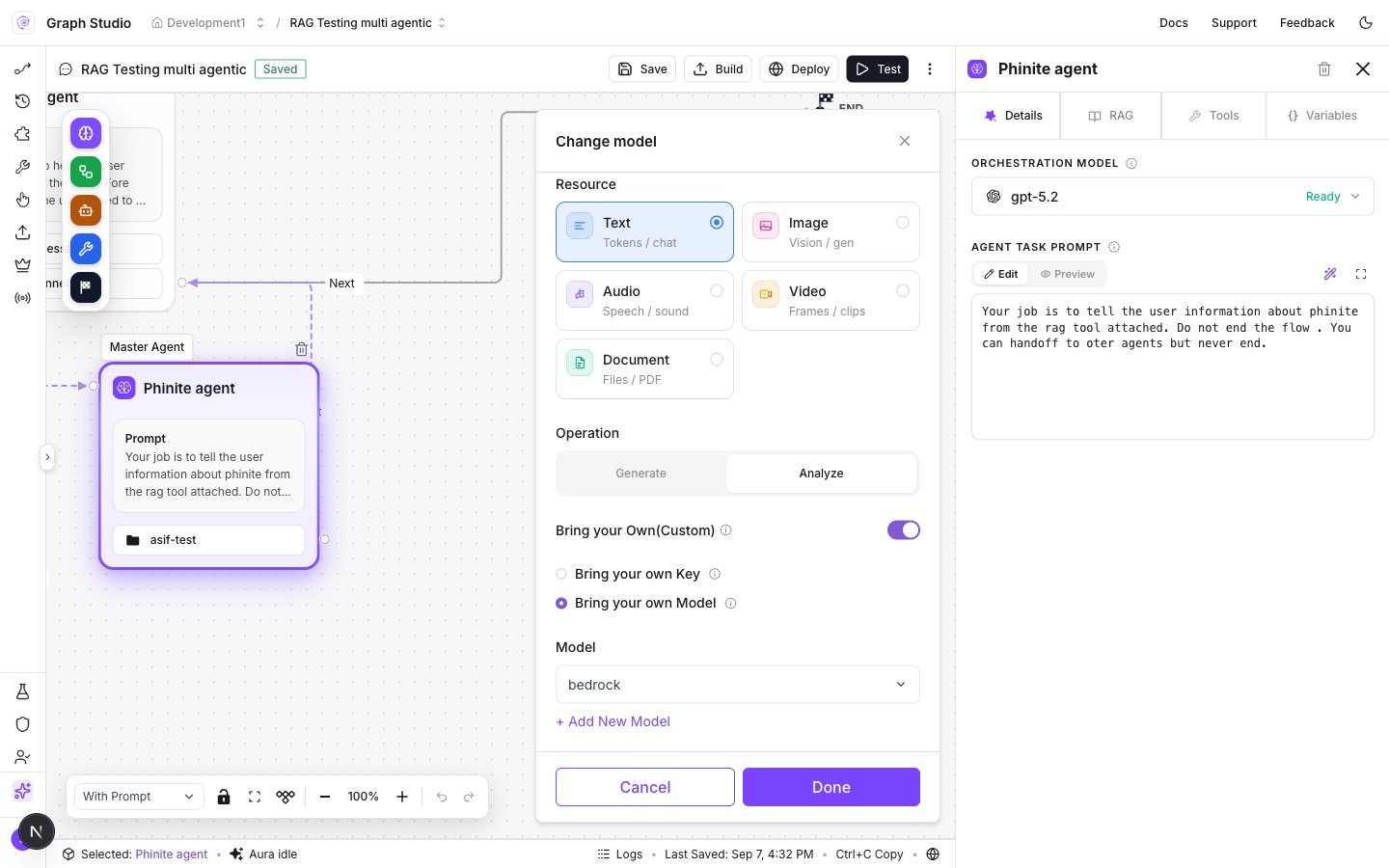
| Per-node use | Graph Studio → node **Details** → **Change model** → **Bring your Own(Custom)** → **Bring your own Model** |
Custom Models are distinct from [Model Keys](/workspace/models) (BYOK provider keys for catalog models). Models hub shows both: Custom Models + Model Keys.
## Add a custom model
1. Open **BUILD → Models → Custom Models**.
2. Add a model (provider compatibility, endpoint, deployment name, credentials, capabilities).
3. Save — the model appears in the workspace list.
4. In Graph Studio, open an agent node **Details** tab and open **Change model**.
5. Enable **Bring your Own(Custom)**, select **Bring your own Model**, pick the model (or **+ Add New Model**), then **Done**.
6. **Save** the Agent Graph before **Build**.
## Where in the product
| Surface | Path |
| ----------------- | ---------------------------------------------------------------------------------------------------------- |
| Workspace sidebar | **BUILD → Models → Custom Models** |
| URL | `/{org}/workspace/{workspaceId}/custom-models` |
| Per-node use | Graph Studio → node **Details** → **Change model** → **Bring your Own(Custom)** → **Bring your own Model** |
Custom Models are distinct from [Model Keys](/workspace/models) (BYOK provider keys for catalog models). Models hub shows both: Custom Models + Model Keys.
## Add a custom model
1. Open **BUILD → Models → Custom Models**.
2. Add a model (provider compatibility, endpoint, deployment name, credentials, capabilities).
3. Save — the model appears in the workspace list.
4. In Graph Studio, open an agent node **Details** tab and open **Change model**.
5. Enable **Bring your Own(Custom)**, select **Bring your own Model**, pick the model (or **+ Add New Model**), then **Done**.
6. **Save** the Agent Graph before **Build**.
 ## Public Agent Card restriction
Agent Graphs that use a **BYOM** model **cannot** be published as a **public** Agent Card. Replace the BYOM model with a supported catalog (or Phinite-managed) model before publishing publicly.
This Agent Graph cannot be published as a Public Agent Card while it uses a BYOM model. Swap to a supported model first.
## Related
Custom Models and Model Keys together.
Agent Card publish path and visibility.
## Public Agent Card restriction
Agent Graphs that use a **BYOM** model **cannot** be published as a **public** Agent Card. Replace the BYOM model with a supported catalog (or Phinite-managed) model before publishing publicly.
This Agent Graph cannot be published as a Public Agent Card while it uses a BYOM model. Swap to a supported model first.
## Related
Custom Models and Model Keys together.
Agent Card publish path and visibility.