> ## Documentation Index
> Fetch the complete documentation index at: https://docs.phinite.ai/llms.txt
> Use this file to discover all available pages before exploring further.
# Human in the Loop
> HITL policies, HIL New destination profiles, and how they connect to Tool Governance.
**Human in the Loop (HITL)** is triggered when a tool policy uses the **Human approval** effect. Studio splits this into two modules: **Human in the Loop** (which policies need a person) and **HIL New** (where Accept/Reject should land).
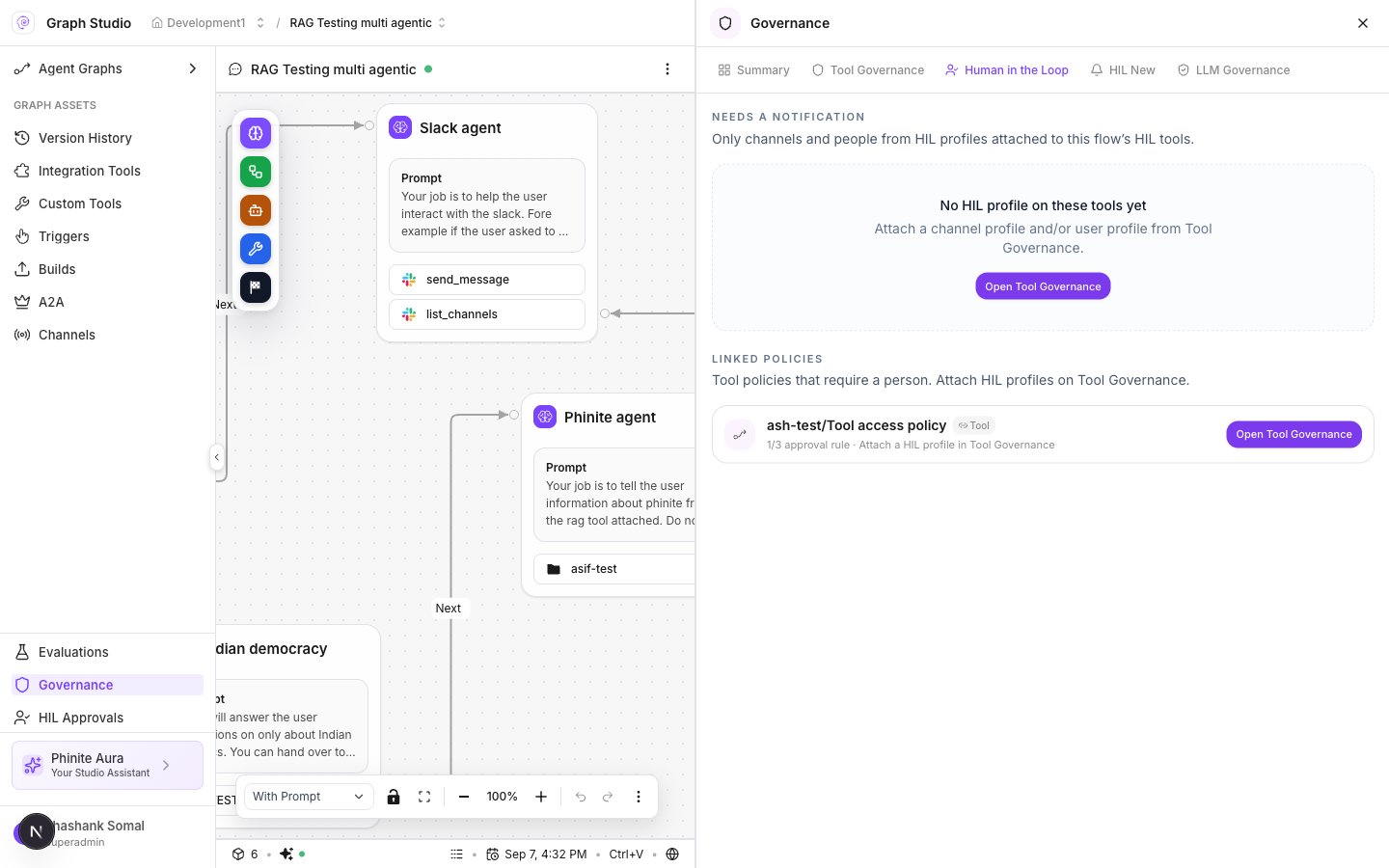 ## Human in the Loop tab
| Section | Meaning |
| ------------------------ | --------------------------------------------------------------------------------------------------------------- |
| **Needs a notification** | Tools that need a channel/user profile. Empty: **No HIL profile on these tools yet** — **Open Tool Governance** |
| **Linked policies** | Tool policies that require a person (for example `1/3 approval rule`) |
Scope chips: **Flow-level** or **Node-level · \{id}**.
## HIL New — destination profiles
**HIL New** prominence: profiles for where Accept/Reject lands — users and channels — then attach to tools that need HIL.
### Start options
| Option | Tag | Use |
| ------------------- | ------- | ---------------------------------------------------- |
| **Dashboard** | User | People/groups approve on the **HIL Approvals** queue |
| **Slack** | Channel | Channel destination (UI preview) |
| **Microsoft Teams** | Channel | Channel destination (UI preview) |
### Profile fields
1. Open **Governance** → **HIL New** → create profile.
2. Set **Name** and **Description**.
3. Choose destination: **Dashboard**, **Slack**, **Microsoft Teams**, or **Other channel**.
4. For Dashboard: **People and groups** (+ optional email notify).
5. For Slack/Teams: pick a workspace connection / channel (`integrationId` + channel ref).
6. Save. Lists show **In Use** and **Available** with **Attach** / detach.
**HIL New** profiles are stored in the browser (local) until a dedicated profile API ships. Backend **Approval delivery** on policy bindings still supports only **Dashboard** and **Email**. Do not treat Slack/Teams as production delivery yet.
## Attach HITL to a policy
1. Create or open a policy with **Human approval** rules ([Tool policies](/governance/tool-policies)).
2. On attach, set **Approval delivery** → **Dashboard** and/or **Email**.
3. Optionally use **Attach HIL** / **HIL New** profiles for richer destinations in Studio.
4. Approvers work the queue in [Approvals](/governance/approvals).
## Related
* [Tool policies](/governance/tool-policies)
* [Approvals](/governance/approvals)
* [Governance overview](/governance/overview)
## Human in the Loop tab
| Section | Meaning |
| ------------------------ | --------------------------------------------------------------------------------------------------------------- |
| **Needs a notification** | Tools that need a channel/user profile. Empty: **No HIL profile on these tools yet** — **Open Tool Governance** |
| **Linked policies** | Tool policies that require a person (for example `1/3 approval rule`) |
Scope chips: **Flow-level** or **Node-level · \{id}**.
## HIL New — destination profiles
**HIL New** prominence: profiles for where Accept/Reject lands — users and channels — then attach to tools that need HIL.
### Start options
| Option | Tag | Use |
| ------------------- | ------- | ---------------------------------------------------- |
| **Dashboard** | User | People/groups approve on the **HIL Approvals** queue |
| **Slack** | Channel | Channel destination (UI preview) |
| **Microsoft Teams** | Channel | Channel destination (UI preview) |
### Profile fields
1. Open **Governance** → **HIL New** → create profile.
2. Set **Name** and **Description**.
3. Choose destination: **Dashboard**, **Slack**, **Microsoft Teams**, or **Other channel**.
4. For Dashboard: **People and groups** (+ optional email notify).
5. For Slack/Teams: pick a workspace connection / channel (`integrationId` + channel ref).
6. Save. Lists show **In Use** and **Available** with **Attach** / detach.
**HIL New** profiles are stored in the browser (local) until a dedicated profile API ships. Backend **Approval delivery** on policy bindings still supports only **Dashboard** and **Email**. Do not treat Slack/Teams as production delivery yet.
## Attach HITL to a policy
1. Create or open a policy with **Human approval** rules ([Tool policies](/governance/tool-policies)).
2. On attach, set **Approval delivery** → **Dashboard** and/or **Email**.
3. Optionally use **Attach HIL** / **HIL New** profiles for richer destinations in Studio.
4. Approvers work the queue in [Approvals](/governance/approvals).
## Related
* [Tool policies](/governance/tool-policies)
* [Approvals](/governance/approvals)
* [Governance overview](/governance/overview)