> ## Documentation Index
> Fetch the complete documentation index at: https://docs.phinite.ai/llms.txt
> Use this file to discover all available pages before exploring further.
# Slack
> Connect Slack as a conversational channel.
## Setup
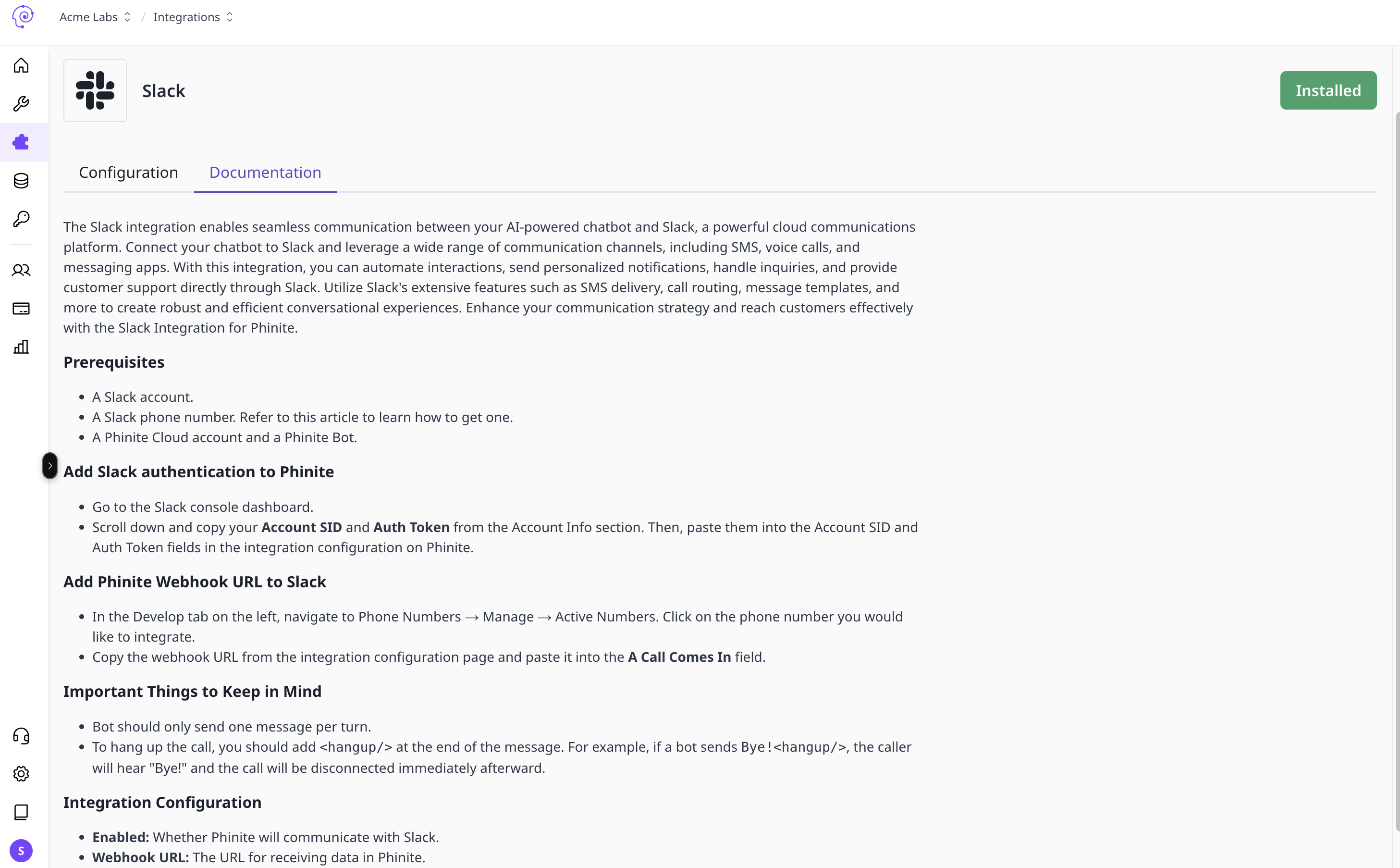 ## Connecting Your Agentic Bot to Slack
Once connected, your bot can:
* Reply to Slack users in real time
* Send automated updates or alerts
* Handle customer support directly from Slack
***
### Step 1: Create a New Slack Configuration
1. Integrations → Slack
2. Click ➕ Add Configuration
3. Fill:
* Signing Secret
* Bot User OAuth Token (SignIn Bot Token)
* (Optional) Configuration name
4. Select the agent, then Save Configuration
On save, Webhook URLs are generated for: DEV, UAT, PROD.
***
### Step 2: Create a Slack App
1. Go to Slack API Apps → Create New App → From scratch
2. Name the app and select the workspace
3. Create App
***
### Step 3: Generate the Bot Token
1. OAuth & Permissions → Scopes → Bot Token Scopes
2. Add recommended scopes:
```bash theme={null}
chat:write
channels:read
channels:history
im:read
im:history
users:read
files:read
files:write
```
3. Install to Workspace → Allow
4. Copy the Bot User OAuth Token (`xoxb-...`) → paste in your config
***
### Step 4: Get the Signing Secret
Basic Information → App Credentials → copy Signing Secret → add to your config.
***
### Step 5: Link Webhook URL in Slack
1. Event Subscriptions → Enable Events
2. Paste your DEV/UAT/PROD Request URL (from your saved configuration)
3. Save changes
4. Optionally add bot events (e.g., `message.channels`, `message.im`, `app_mention`)
***
### Summary
| Step | Action | Output |
| ---- | -------------------- | -------------------------------- |
| 1 | Create configuration | Saved creds + generated webhooks |
| 2 | Create Slack app | App in your workspace |
| 3 | Token + scopes | Bot token with permissions |
| 4 | Signing secret | Verified requests |
| 5 | Link webhook | Slack events flow to your bot |
### Common Issues
* Invalid Request URL: endpoint must be HTTPS/publicly reachable
* Token expired: ensure tokens aren’t rotating unexpectedly
* Missing permissions: verify scopes under Bot Token Scopes
## Connecting Your Agentic Bot to Slack
Once connected, your bot can:
* Reply to Slack users in real time
* Send automated updates or alerts
* Handle customer support directly from Slack
***
### Step 1: Create a New Slack Configuration
1. Integrations → Slack
2. Click ➕ Add Configuration
3. Fill:
* Signing Secret
* Bot User OAuth Token (SignIn Bot Token)
* (Optional) Configuration name
4. Select the agent, then Save Configuration
On save, Webhook URLs are generated for: DEV, UAT, PROD.
***
### Step 2: Create a Slack App
1. Go to Slack API Apps → Create New App → From scratch
2. Name the app and select the workspace
3. Create App
***
### Step 3: Generate the Bot Token
1. OAuth & Permissions → Scopes → Bot Token Scopes
2. Add recommended scopes:
```bash theme={null}
chat:write
channels:read
channels:history
im:read
im:history
users:read
files:read
files:write
```
3. Install to Workspace → Allow
4. Copy the Bot User OAuth Token (`xoxb-...`) → paste in your config
***
### Step 4: Get the Signing Secret
Basic Information → App Credentials → copy Signing Secret → add to your config.
***
### Step 5: Link Webhook URL in Slack
1. Event Subscriptions → Enable Events
2. Paste your DEV/UAT/PROD Request URL (from your saved configuration)
3. Save changes
4. Optionally add bot events (e.g., `message.channels`, `message.im`, `app_mention`)
***
### Summary
| Step | Action | Output |
| ---- | -------------------- | -------------------------------- |
| 1 | Create configuration | Saved creds + generated webhooks |
| 2 | Create Slack app | App in your workspace |
| 3 | Token + scopes | Bot token with permissions |
| 4 | Signing secret | Verified requests |
| 5 | Link webhook | Slack events flow to your bot |
### Common Issues
* Invalid Request URL: endpoint must be HTTPS/publicly reachable
* Token expired: ensure tokens aren’t rotating unexpectedly
* Missing permissions: verify scopes under Bot Token Scopes