> ## Documentation Index
> Fetch the complete documentation index at: https://docs.phinite.ai/llms.txt
> Use this file to discover all available pages before exploring further.
# Triggers (Autonomous Assistants)
> Configure triggers to start flows automatically or from external systems.
# Triggers
Triggers define how and when a flow begins.\
You can configure them to start automatically, on a schedule, or through external API calls.
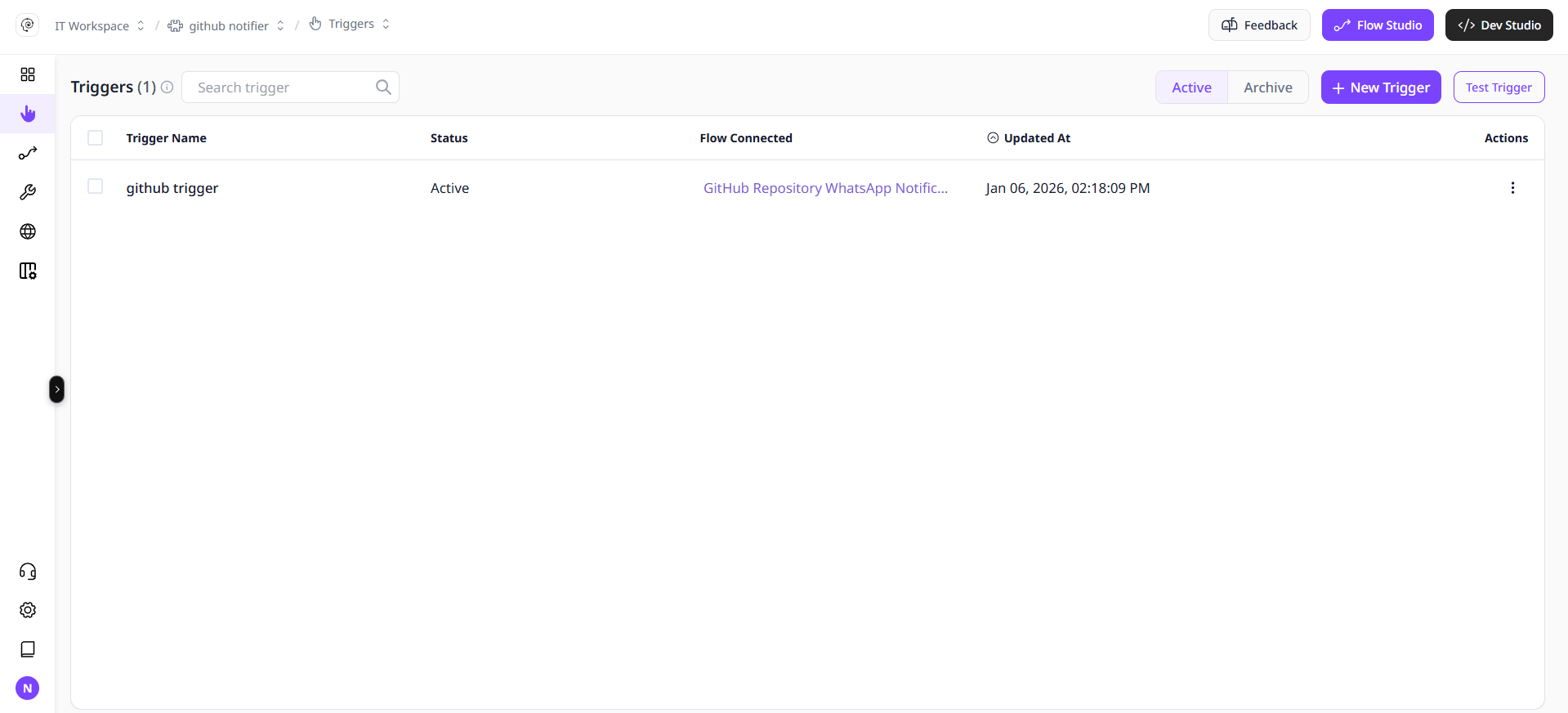 Triggers connect your assistant to external workflows and automation systems.
***
## Trigger Types
Phinite supports three trigger types.
API-based triggers allow external applications to start a specific flow.
**Use Case**
* When you need real-time activation from an external event such as a form submission or webhook.
**Configuration**
* Requires an API key defined at the workspace level.
* Called via an HTTP POST request.
**Best For** Fast, real-time executions where the response completes within seconds.
Scheduler-based triggers start flows at fixed intervals or specific times.
**Use Case**
Use this for periodic automation such as daily reports, nightly data syncs, or batch processing.
**Configuration**
* Define a start time and recurrence (hourly, daily, weekly, or custom cron).
* Ideal for long-running flows that might exceed API timeouts.
**Best For**
Background processes that do not require immediate response.
### **Choose the Right Trigger**
| Scenario | Recommended Trigger | Reason |
| ------------------------------------------------------- | ------------------- | ----------------------------------------- |
| External app sends an event that needs immediate action | **API-Based** | Instant activation with minimal latency |
| Recurring process such as reports or sync tasks | **Scheduler-Based** | Prevents timeout and automates repetition |
### Configure a Trigger
Use scheduler-based triggers for long-running workflows that may exceed standard API timeout limits.
### Manage Triggers
| **Action** | **Description** |
| :--------- | :------------------------------------- |
| **Edit** | Update type, frequency, or target flow |
## Workspace API Keys
API-based triggers depend on workspace-level API keys for authentication.
Store and rotate keys securely. Never expose API keys in client-side or public repositories.
## **Best Practices**
* Use **API triggers** for short, transactional events.
* Use **Background task** for long events (track via status api).
* Use **Scheduler triggers** for recurring jobs.
* Avoid attaching multiple triggers to the same flow unless needed.
* Test each trigger thoroughly in the development environment before deploying to production.
## **Related Topics**
* [Intents](/assistants/components/intents)
* [Agent Graphs](/assistants/components/flows)
Triggers connect your assistant to external workflows and automation systems.
***
## Trigger Types
Phinite supports three trigger types.
API-based triggers allow external applications to start a specific flow.
**Use Case**
* When you need real-time activation from an external event such as a form submission or webhook.
**Configuration**
* Requires an API key defined at the workspace level.
* Called via an HTTP POST request.
**Best For** Fast, real-time executions where the response completes within seconds.
Scheduler-based triggers start flows at fixed intervals or specific times.
**Use Case**
Use this for periodic automation such as daily reports, nightly data syncs, or batch processing.
**Configuration**
* Define a start time and recurrence (hourly, daily, weekly, or custom cron).
* Ideal for long-running flows that might exceed API timeouts.
**Best For**
Background processes that do not require immediate response.
### **Choose the Right Trigger**
| Scenario | Recommended Trigger | Reason |
| ------------------------------------------------------- | ------------------- | ----------------------------------------- |
| External app sends an event that needs immediate action | **API-Based** | Instant activation with minimal latency |
| Recurring process such as reports or sync tasks | **Scheduler-Based** | Prevents timeout and automates repetition |
### Configure a Trigger
Use scheduler-based triggers for long-running workflows that may exceed standard API timeout limits.
### Manage Triggers
| **Action** | **Description** |
| :--------- | :------------------------------------- |
| **Edit** | Update type, frequency, or target flow |
## Workspace API Keys
API-based triggers depend on workspace-level API keys for authentication.
Store and rotate keys securely. Never expose API keys in client-side or public repositories.
## **Best Practices**
* Use **API triggers** for short, transactional events.
* Use **Background task** for long events (track via status api).
* Use **Scheduler triggers** for recurring jobs.
* Avoid attaching multiple triggers to the same flow unless needed.
* Test each trigger thoroughly in the development environment before deploying to production.
## **Related Topics**
* [Intents](/assistants/components/intents)
* [Agent Graphs](/assistants/components/flows)