> ## Documentation Index
> Fetch the complete documentation index at: https://docs.phinite.ai/llms.txt
> Use this file to discover all available pages before exploring further.
# Conversational Agent Graphs
> Design chat and voice Agent Graphs — deploy via channels or Chat API.
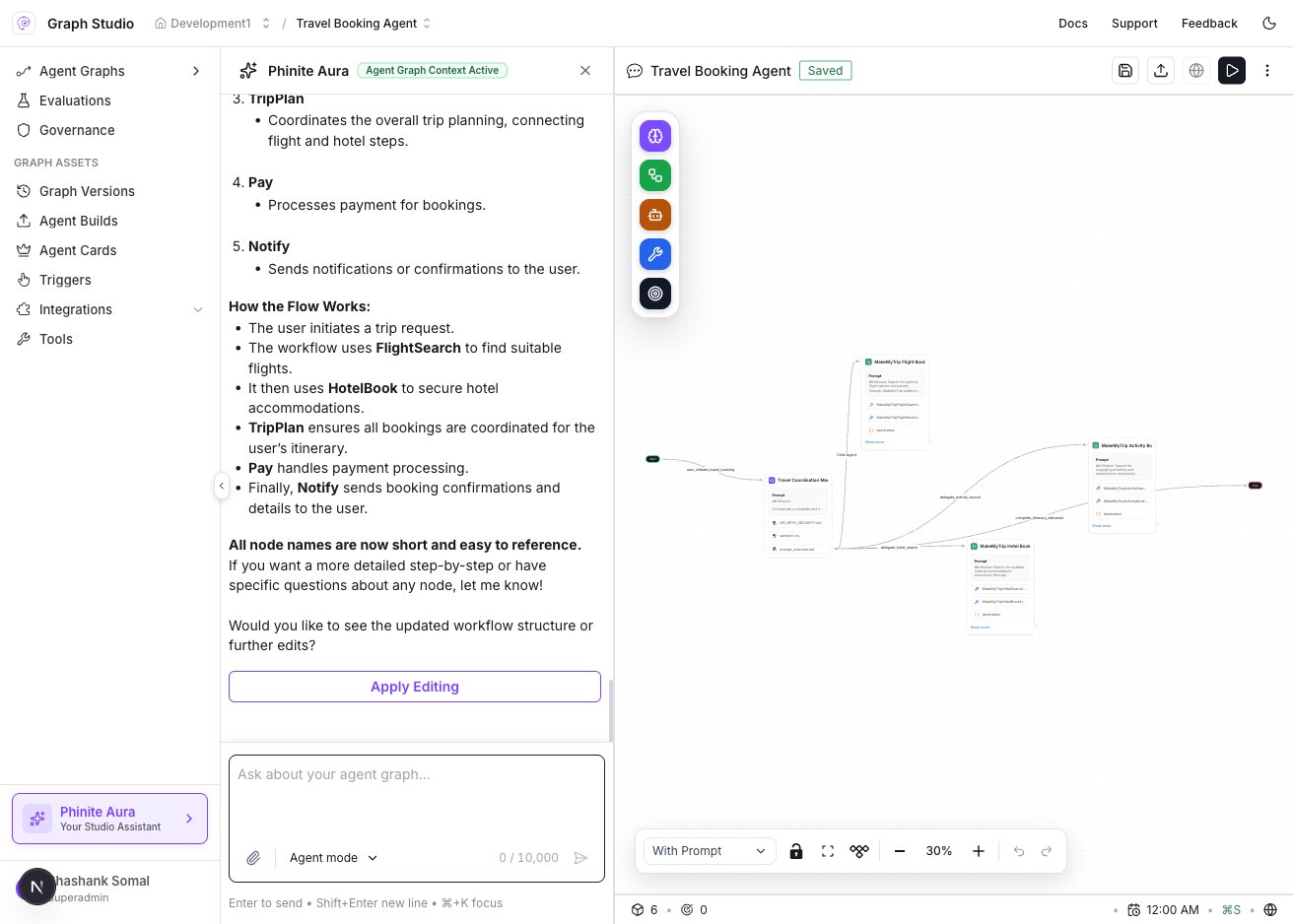
**Conversational Agent Graphs** handle real-time chat and voice. Users interact through connected channels or your own apps via the **Chat API** — routing, tools, and RAG logic live in [Graph Studio](/graph-studio/overview).
Design nodes, prompts, tools, and RAG on the canvas.
Web chat, WhatsApp, Slack, Teams, voice, email.
Wire a build to a connected channel environment.
HTTP chat endpoint for apps and backends.
## What Conversational graphs do
| Capability | Detail |
| ----------------------- | ------------------------------------------------------ |
| **Real-time dialogue** | Multi-turn sessions with memory and captured variables |
| **Channel ingress** | WhatsApp, Slack, Teams, web chat, Twilio Voice, email |
| **Programmatic chat** | Chat API for custom frontends and mobile apps |
| **Knowledge grounding** | RAG collections attached to agent nodes |
| **Observability** | Session logs, timelines, and token metrics |
 ## Supported channels
| Channel | Doc |
| ------------- | -------------------------------------- |
| Web Chat | [Web chat](/channels/webchat) |
| WhatsApp | [WhatsApp](/channels/whatsapp) |
| Slack / Teams | [Slack & Teams](/channels/slack-teams) |
| Twilio Voice | [Twilio](/channels/twilio) |
| Email | [Email](/channels/email) |
Configure channel credentials once under workspace **Integrations**, then assign a build during **Deploy to Channel**. See [Channels overview](/channels/overview).
## Design workflow
1. Create a **Conversational** Agent Graph from Workspace Home.
2. In Graph Studio, add **Start**, **Master Agent**, and **End** nodes ([Node types](/graph-studio/interface/node-library)).
3. Configure each agent node's prompt, tools, and RAG ([Agent configuration](/graph-studio/interface/node-library)).
4. Define [variables](/graph-studio/interface#variables) for inputs the graph should capture across turns.
5. Click **Save**, then **Build** to pin tool versions ([Builds](/builds/overview)).
6. Assign the build to **DEV** / **UAT** / **PROD**.
7. Click **Deploy** and choose a target:
| Deploy tab | Outcome |
| ---------------------- | ------------------------------------------------------------- |
| **Deploy to Channel** | Route inbound messages from a connected channel to this build |
| **Deploy as Chat API** | HTTP endpoint your app calls for chat turns |
| **Deploy as A2A** | Expose as an Agent Card with hosted A2A URL |
Test in Graph Studio with **Test** before promoting builds to PROD. Use [Observability logs](/observability/logs) to trace conversation paths and refine prompts.
## Deploy via Chat API
When you deploy as **Chat API**, Phinite exposes an HTTP endpoint backed by your pinned build. Your application sends user messages and receives agent responses — no channel webhook required.
1. Create and **Build** your Conversational graph.
2. Click **Deploy** → **Deploy as Chat API**.
3. Select environment and build version.
4. Copy the endpoint URL and authenticate with your workspace API key.
5. Send chat payloads from your backend or mobile app.
See [Deploy](/agents/deploy) and [Reference API](/reference/api) for request formats.
## Deploy via channels
1. Connect the channel under workspace **Integrations** ([Configure integrations](/configure/integrations)).
2. **Build** and assign to the target environment.
3. Click **Deploy** → **Deploy to Channel**.
4. Select channel, environment, and build.
5. Complete webhook or OAuth steps shown in the modal.
See [Deploy to a channel](/agents/deploy-channel) for per-channel details.
## Best practices
* Keep prompts focused — one clear mission per Master Agent node.
* Capture structured variables early so downstream tool nodes have clean inputs.
* Publish and pin tool versions before production builds.
* Monitor session logs for failed tool calls and unexpected routing.
## Related
* [Autonomous Agent Graphs](/agents/autonomous)
* [Graph Studio overview](/graph-studio/overview)
* [Builds overview](/builds/overview)
* [Observability overview](/observability/overview)
## Supported channels
| Channel | Doc |
| ------------- | -------------------------------------- |
| Web Chat | [Web chat](/channels/webchat) |
| WhatsApp | [WhatsApp](/channels/whatsapp) |
| Slack / Teams | [Slack & Teams](/channels/slack-teams) |
| Twilio Voice | [Twilio](/channels/twilio) |
| Email | [Email](/channels/email) |
Configure channel credentials once under workspace **Integrations**, then assign a build during **Deploy to Channel**. See [Channels overview](/channels/overview).
## Design workflow
1. Create a **Conversational** Agent Graph from Workspace Home.
2. In Graph Studio, add **Start**, **Master Agent**, and **End** nodes ([Node types](/graph-studio/interface/node-library)).
3. Configure each agent node's prompt, tools, and RAG ([Agent configuration](/graph-studio/interface/node-library)).
4. Define [variables](/graph-studio/interface#variables) for inputs the graph should capture across turns.
5. Click **Save**, then **Build** to pin tool versions ([Builds](/builds/overview)).
6. Assign the build to **DEV** / **UAT** / **PROD**.
7. Click **Deploy** and choose a target:
| Deploy tab | Outcome |
| ---------------------- | ------------------------------------------------------------- |
| **Deploy to Channel** | Route inbound messages from a connected channel to this build |
| **Deploy as Chat API** | HTTP endpoint your app calls for chat turns |
| **Deploy as A2A** | Expose as an Agent Card with hosted A2A URL |
Test in Graph Studio with **Test** before promoting builds to PROD. Use [Observability logs](/observability/logs) to trace conversation paths and refine prompts.
## Deploy via Chat API
When you deploy as **Chat API**, Phinite exposes an HTTP endpoint backed by your pinned build. Your application sends user messages and receives agent responses — no channel webhook required.
1. Create and **Build** your Conversational graph.
2. Click **Deploy** → **Deploy as Chat API**.
3. Select environment and build version.
4. Copy the endpoint URL and authenticate with your workspace API key.
5. Send chat payloads from your backend or mobile app.
See [Deploy](/agents/deploy) and [Reference API](/reference/api) for request formats.
## Deploy via channels
1. Connect the channel under workspace **Integrations** ([Configure integrations](/configure/integrations)).
2. **Build** and assign to the target environment.
3. Click **Deploy** → **Deploy to Channel**.
4. Select channel, environment, and build.
5. Complete webhook or OAuth steps shown in the modal.
See [Deploy to a channel](/agents/deploy-channel) for per-channel details.
## Best practices
* Keep prompts focused — one clear mission per Master Agent node.
* Capture structured variables early so downstream tool nodes have clean inputs.
* Publish and pin tool versions before production builds.
* Monitor session logs for failed tool calls and unexpected routing.
## Related
* [Autonomous Agent Graphs](/agents/autonomous)
* [Graph Studio overview](/graph-studio/overview)
* [Builds overview](/builds/overview)
* [Observability overview](/observability/overview)